




- Published on: 2026-10-28 15:16:00
How to Add Text and Shapes to Charts in MetaTrader 4 (MT4)
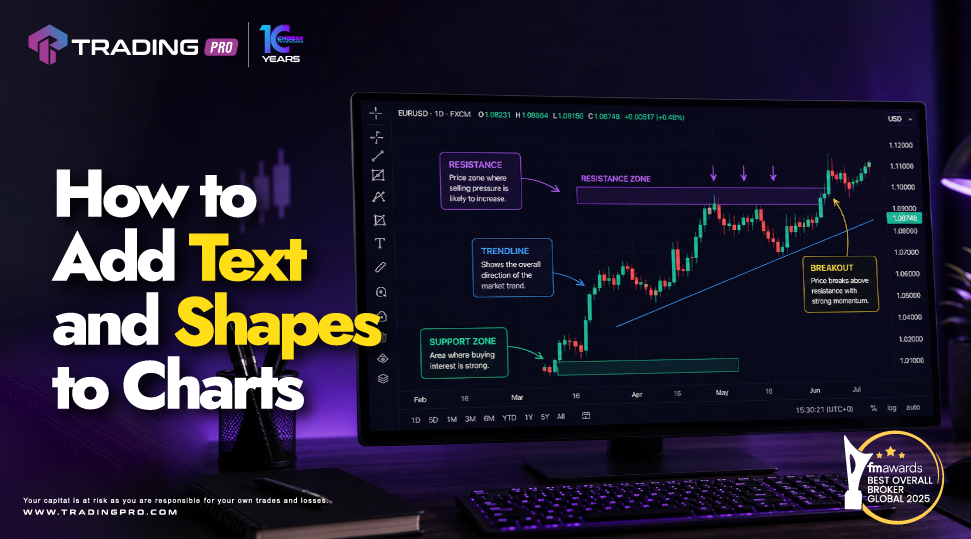
Analyzing financial charts is more than just looking at raw price movements. Successful traders constantly map out market zones, highlight key technical structures, and make written notes directly on their price screens. In MetaTrader 4 (MT4), annotating your charts with customized text and geometric shapes turns a basic price plot into a functional trading workspace.
Whether you want to mark a major support or resistance level, highlight a significant price consolidation box, or make a note about an upcoming economic news event, learning to use MT4 visual annotation tools is an essential skill. Visual annotations allow you to recall your trading plan instantly when price retests critical levels.
In this step by step guide, you will learn how to insert text notes and labels, place custom shapes like rectangles and triangles, highlight specific mt4 candlestick price formations, and integrate these objects alongside your trendline mt4 technical lines.
TradingPRO provides access to the MT4 platform along with a beginner friendly trading environment, offering new and experienced traders the stability needed to execute clear chart analysis.
Why Visual Annotations Matter in MT4 Technical Analysis
When monitoring multiple financial instruments, relying purely on memory can lead to missed setups or hasty trading decisions. Adding graphical shapes and written notes directly onto your chart workspace provides several distinct advantages:
- Clear Support and Resistance Zones: Using shape tools like rectangles helps you draw shaded price areas rather than thin single lines, accurately reflecting how real market supply and demand zones behave.
- Streamlined Trade Journaling: Adding text notes directly onto price action records your exact thought process for why you entered or skipped a specific trade setup.
- Instant Signal Recognition: Marking key price patterns ensures you immediately recognize crucial price action when revisiting an asset on a higher timeframe.
- Organized Chart Layouts: Combining text labels with drawing tools creates clean, professional charts that reduce mental fatigue during long trading sessions.
TradingPRO supports traders learning MT4 by delivering reliable charting performance, allowing all your customized text elements and graphical shapes to remain accurately anchored to market price data.
Understanding Text Tools in MT4: Text vs. Text Label
MetaTrader 4 offers two distinct text features in the Line Studies toolbar and top menu: Text and Text Label. While they sound identical, they behave very differently on your chart pane.
MT4 Text Tool MT4 Text Label Tool
Anchored to specific Price & Time. Anchored to screen Coordinates.
Moves when you scroll the chart. Stays fixed as chart scrolls.
- The Text Tool (Price & Time Anchored)
The standard Text object attaches to a fixed historical price and date coordinate. As you drag your chart backward or forward in time, or zoom in and out, the text moves along with price action.- Best Used For: Labeling a specific mt4 candlestick pattern, noting a precise trade entry point, or marking historical swing highs and lows.
- The Text Label Tool (Screen Coordinate Anchored)
A Text Label locks onto a fixed position on your physical screen monitor (such as the top-left corner). Regardless of how much you scroll through historical market data or change timeframes, the label stays anchored in place.- Best Used For: Displaying personal account rules, trading session schedules, risk management reminders, or broker account details.
How to Add and Customize Text in MT4 (Step-by-Step)
- Select the Text Tool:Toolbar shortcut or Insert menu.
Click the Text icon (represented by an 'A') or Text Label icon (represented by an 'A' inside a box) on the Line Studies toolbar. You can also go to Insert > Text or Text Label from the top main menu. - Place the Text Object:Click exact chart location.
Left-click on the exact area of the chart where you want the text to appear. A properties dialog box will automatically pop up on screen. - Type Your Message and Style:Customize font, size, and color.
In the Text tab, type your desired note into the Text field. Customize the font style, font size, and color so it stands out clearly against your background canvas. - Confirm and Lock Position:Save your settings.
Click OK. The text will now appear on your chart. To move or edit the text later, double-click it until small selection handles appear, then drag it to a new location or right-click to open its properties.
Adding Shapes to MT4 Charts: Rectangles, Triangles, and Ellipses
Geometric shapes turn simple lines into clear visual zones. MetaTrader 4 includes three primary shape tools accessible via Insert > Shapes:
- Rectangles (Supply & Demand Zones)
- Rectangles are the most widely used shape tool in forex trading. Instead of drawing a single horizontal line that price might overshoot slightly, drawing a rectangle creates a shaded zone capturing a range of prices where buyers or sellers previously reacted.
- How to Draw: Go to Insert > Shapes > Rectangle. Click on a swing high or low, hold down the mouse button, and drag diagonally across your screen to cover the desired time and price area.
- Triangles (Chart Patterns & Compression)
- Triangles allow you to highlight classic chart consolidation patterns such as ascending triangles, descending triangles, or symmetrical wedges.
- How to Draw: Go to Insert > Shapes > Triangle. Unlike rectangles which require two anchor points, a triangle requires three distinct points on your chart. Click the three swing points sequentially to form the filled triangular shape.
- Ellipses (Highlighting Specific Areas)
- Ellipses (or circles) are perfect for drawing attention to specific chart moments, such as a false breakout wick, an economic news spike, or a key candle interaction along a trendline mt4 setup.
- How to Draw: Go to Insert > Shapes > Ellipse. Click and drag across the chart to form an oval shape over the targeted price bars.
How to Customize Shape Options and Transparency
By default, MT4 shapes can sometimes appear as solid, opaque blocks that completely cover up underlying price bars. To make your charts readable, you must adjust shape filling settings.
| MT4 Shape Property | Setting Option | Visual Result |
| Draw object as background | Checked (Recommended) | Places the shape behind price bars so candlesticks remain fully visible |
| Draw object as background | Unchecked | Keeps the shape in front of price bars, which can block candle wicks |
| Color | Custom Palette Dropdown | Changes the outline and fill color of the shape |
| Style/ Line thickness | Borders Dropdown | Adjusts the border outline thickness when shapes are unfilled |
To edit any shape, double-click its outer border until small anchor squares appear, right-click, and select Properties. Check the Draw object as background box under the Common tab to ensure your mt4 candlestick bars sit cleanly on top of shaded support zones.
Combining Shapes, Text, and Trendlines in a Real Workflow
To build a professional analytical framework, combine multiple drawing objects into a cohesive workflow:
- Identify the Broader Trend: Draw a primary trendline mt4 object connecting major higher lows or lower highs across your chart.
- Mark Key Support / Resistance: Use the Rectangle tool to shade key horizontal price zones where price interacted with your trendline in the past.
- Annotate Signal Confirmation: Place a Text note next to a rejection candle (such as a Hammer or Shooting Star) explaining why the zone offers trade confluence.
TradingPRO provides access to forex and other supported markets through MT4, allowing you to practice applying this full technical workflow across currency pairs, commodities, and global indices.
Practical Beginner Tips for Managing Chart Objects
- Manage Your Objects List: Press Ctrl + B on your keyboard to open the MT4 Objects List. This window shows every text note, shape, and line drawn on your active chart, allowing you to edit or delete objects in bulk easily.
- Save Object Configurations into Templates: Once you draw your default shapes and notes, save your layout as a chart template. Right-click, select Templates, and click Save Template... so your visual markup styles persist across new charts.
- Keep Color Schemes Consistent: Use green or blue rectangles for demand/support zones and red or orange rectangles for supply/resistance zones to maintain instant visual clarity.
Common Beginner Mistakes to Avoid
- Overcrowding the Screen: Adding too many shapes and text notes creates visual clutter, making it hard to see real time price action clearly. Keep notes concise.
- Using the Wrong Text Tool: Using a standard Text object for screen-wide notes will cause your note to drift off-screen when you scroll back in time. Use the Text Label tool for fixed screen notes instead.
- Forgetting to Enable Background Fill: Leaving shapes on top of price bars obscures candle wicks, preventing you from reading price action accurately. Always check Draw object as background.
Frequently Asked Questions (FAQ)
How do I delete a shape or text object from my MT4 chart?
Double-click the specific text or shape on your chart until selection handles appear, then press the Delete key on your keyboard. Alternatively, press Ctrl + B, select the object from the list, and click Delete.
Why did my text note disappear when I scrolled through the chart?
If you used the standard Text tool, the note was anchored to a specific past date and price. When you scroll far into the future or past, that coordinate moves off-screen. Use the Text Label tool if you want a note to remain permanently visible in one spot on your monitor screen.
How do I draw a hollow rectangle instead of a filled shape?
Double-click the rectangle border, right-click to open Rectangle properties, navigate to the Common tab, and uncheck the Draw object as background option or adjust the fill settings depending on your MT4 build version.
Will my shapes and text objects appear on my MT4 mobile app?
Objects drawn on the desktop version of MT4 do not automatically sync to the MT4 mobile app in real time because chart objects are stored locally in your desktop platform files.
Can I draw shapes over an mt4 candlestick pattern without hiding it?
Yes. Open the shape properties and check the Draw object as background box under the Common tab. This places the shape behind your chart data so every mt4 candlestick renders clearly over the shaded area.
Conclusion
Adding text notes and graphical shapes to MetaTrader 4 charts turns basic price tracking into an organized, professional trading system. By using rectangles to highlight support zones, placing text notes next to significant price formations, and confirming setups along a trendline mt4 boundary, you eliminate guesswork and keep your trading strategy disciplined.
Clear chart markup is most effective when executed on a smooth, reliable trading workstation. TradingPRO offers full access to MetaTrader 4 backed by fast execution speeds, competitive spreads, transparent pricing, and responsive customer support tailored for beginners.
Take your chart analysis to the next level today. Open an account with TradingPRO, log into MetaTrader 4, and start building customized visual chart markups.


