




- Published on: 2026-09-24 14:48:00
Understanding the MT5 Interface: A Complete Beginner's Guide
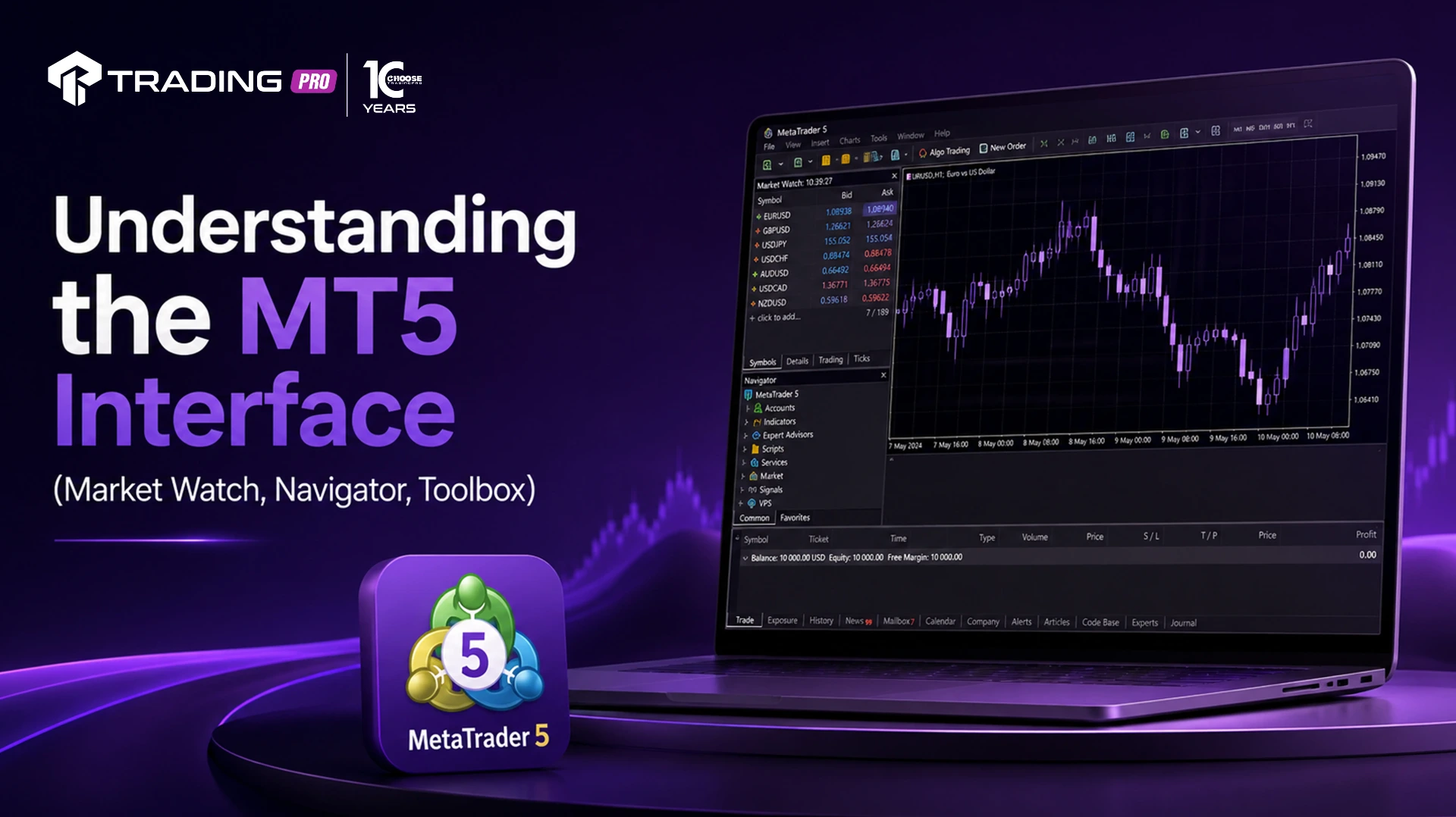
MetaTrader 5 (MT5) is one of the most widely used trading platforms in the world, trusted by millions of traders for its speed, flexibility, and depth of analytical tools. But if you're opening MT5 for the first time, the sheer number of panels, menus, and icons can feel overwhelming. Understanding the MT5 interface is the first and most important step toward trading confidently and efficiently.
This guide breaks down every core section of the MT5 platform so you can move from confusion to clarity in minutes, not hours.
Why Understanding the MT5 Interface Matters
Before placing your first trade, it pays to know exactly where everything lives on your screen. A trader who understands the MT5 interface can:
- Execute trades faster, reducing slippage during volatile market moves
- Access technical indicators and analytical tools without wasting time searching menus
- Monitor multiple markets simultaneously without losing track of open positions
- Customize the platform to match their personal trading style
Whether you're trading forex, indices, commodities, or shares, the interface remains largely the same across asset classes, which makes MT5 skills highly transferable once you've mastered the basics.
The Main Components of the MT5 Interface
When you first launch MT5, the platform is divided into four primary sections: the Market Watch window, the Navigator panel, the Chart window, and the Terminal window. Let's look at each one in detail.
1. Market Watch Window
Located by default on the left side of the screen, the Market Watch window displays a live list of tradable instruments, including their current bid and ask prices. This is your real-time pricing dashboard.
Key functions within Market Watch include:
- Symbols tab: Right-click anywhere in the Market Watch window and select "Symbols" to view, search, and add instruments that aren't currently displayed.
- Right-click menu: Gives you quick access to open a new order, view the depth of market, or open a chart for any listed symbol.
- Spread column: Many traders customize this view to display the current spread, which is critical for cost-conscious trading strategies such as scalping.
Tip: You can drag and drop a symbol from Market Watch directly onto an open chart to instantly switch the chart to that instrument.
2. Navigator Panel
The Navigator, usually docked below the Market Watch window, is your library of trading tools. It houses:
- Accounts: Switch between multiple trading accounts linked to your MT5 terminal without logging out.
- Indicators: Access built-in technical indicators such as Moving Averages, RSI, MACD, and Bollinger Bands.
- Expert Advisors (EAs): If you use automated trading strategies, your installed EAs appear here and can be dragged directly onto a chart.
- Scripts: One-time-use programs that perform a specific action, such as closing all open trades.
Understanding the Navigator panel is essential once you move beyond manual trading and start exploring automation or custom indicators.
3. Chart Window
The Chart window is the visual centerpiece of MT5, where price action unfolds in real time. Each chart can be customized independently, and you can open multiple charts simultaneously using the tabbed layout at the bottom of the screen.
Core chart features include:
- Timeframes: Switch between timeframes ranging from M1 (one minute) to MN1 (monthly) using the toolbar or keyboard shortcuts.
- Chart types: Choose between candlestick, bar, and line charts depending on your analysis preference.
- Zoom and scroll: Use your mouse scroll wheel to zoom in and out, and click-and-drag to scroll through historical price data.
- One-click trading: Enable this feature (via the toolbar) to place trades directly from the chart without opening a separate order window.
4. Terminal Window
Docked at the bottom of the platform, the Terminal window is your command center for account activity. It contains several tabs:
- Trade: Displays your currently open positions and pending orders, along with real-time profit and loss.
- Exposure: Shows your net exposure across different instruments, useful for risk management.
- History: A complete record of your past trades, deposits, and withdrawals.
- Alerts: Set and manage custom price alerts.
- Mailbox: Receive messages directly from your broker, including important account or platform notifications.
- Market: Browse and purchase indicators, EAs, and other tools from the MetaTrader Market (availability may vary by broker).
- Journal: A technical log of platform actions, useful for troubleshooting connection or execution issues.
The Toolbar and Menu Bar
Running along the top of the platform, the menu bar and toolbar give you quick access to nearly every function in MT5:
- File menu: Login to a new account, open a demo account, or print charts.
- View menu: Toggle the visibility of the Market Watch, Navigator, Terminal, and other windows.
- Insert menu: Add indicators, drawing tools, and objects directly to your chart.
- Charts menu: Adjust chart properties, timeframes, and templates.
- Tools menu: Access the Options window, where you can configure trade confirmations, notifications, and expert advisor settings.
Familiarizing yourself with these menus early on will save significant time as you progress from basic navigation to more advanced platform use.
Placing Your First Order Through the Interface
Once you understand where everything is located, placing a trade becomes straightforward:
- Select your instrument in the Market Watch window.
- Double-click the symbol, or right-click and choose "New Order."
- In the order window, select your volume (lot size), set optional stop loss and take profit levels, and choose "Market Execution" or a pending order type.
- Click "Buy" or "Sell" to execute.
Your new position will immediately appear in the Trade tab of the Terminal window, where you can monitor and manage it in real time.
Common Beginner Mistakes When Navigating MT5
- Overcrowding charts: Adding too many indicators at once can clutter your analysis and slow down decision-making.
- Ignoring the Journal tab: If an order fails to execute, the Journal tab often explains why, so always check it before assuming a platform error.
- Not customizing Market Watch: Leaving default columns visible can hide useful data like spread or swap rates.
- Forgetting to save layouts: Any workspace changes you make will need to be saved as a template if you want them to persist (covered in our companion article on customizing your MT5 workspace).
Final Thoughts
Understanding the MT5 interface is the foundation for everything else you'll do on the platform, from technical analysis to trade execution and risk management. Once these core panels (Market Watch, Navigator, Chart window, and Terminal) become second nature, you'll be able to focus entirely on your trading strategy rather than searching for buttons.
Ready to put this knowledge into practice? Log in to your TradingPRO MT5 account and explore each panel described in this guide firsthand. The more comfortable you are with the interface, the faster and more confidently you'll be able to react to market opportunities.


